

Playing Videos (Web & App Integration)
Learn how to retrieve playback information from content objects and use HLS playback URLs in HTML5 players, simple embeds, and the Web SDK.
Overview
After you create on-demand or live content, Videograph returns playback information that you can embed directly in any web or app player. VOD creation responses include a playback ID or a ready HLS playback URL. Live stream creation responses include fields such as playbackUrl, rtmpUrl, streamKey, and status.
These values point to an HLS playlist (an .m3u8 file). Supplying that URL as the source of your video element or player SDK starts streaming.
Related background concepts are covered in Content Model & Playback Basics and the ingest workflow in Uploading Videos (Dashboard & API).
Retrieving playback information
When a VOD asset reaches the ready state, the content API response includes:
-
A playback ID that resolves to an HLS playlist URL, or
-
A direct HLS playback URL.
For live streams, the creation response includes a playbackUrl that becomes active once the stream starts publishing.
Use the HLS .m3u8 URL as the src of your HTML5 video element or provide it to your player initializer.
The screenshot below shows the dashboard preview and the Link to Video URL derived from the playback ID.
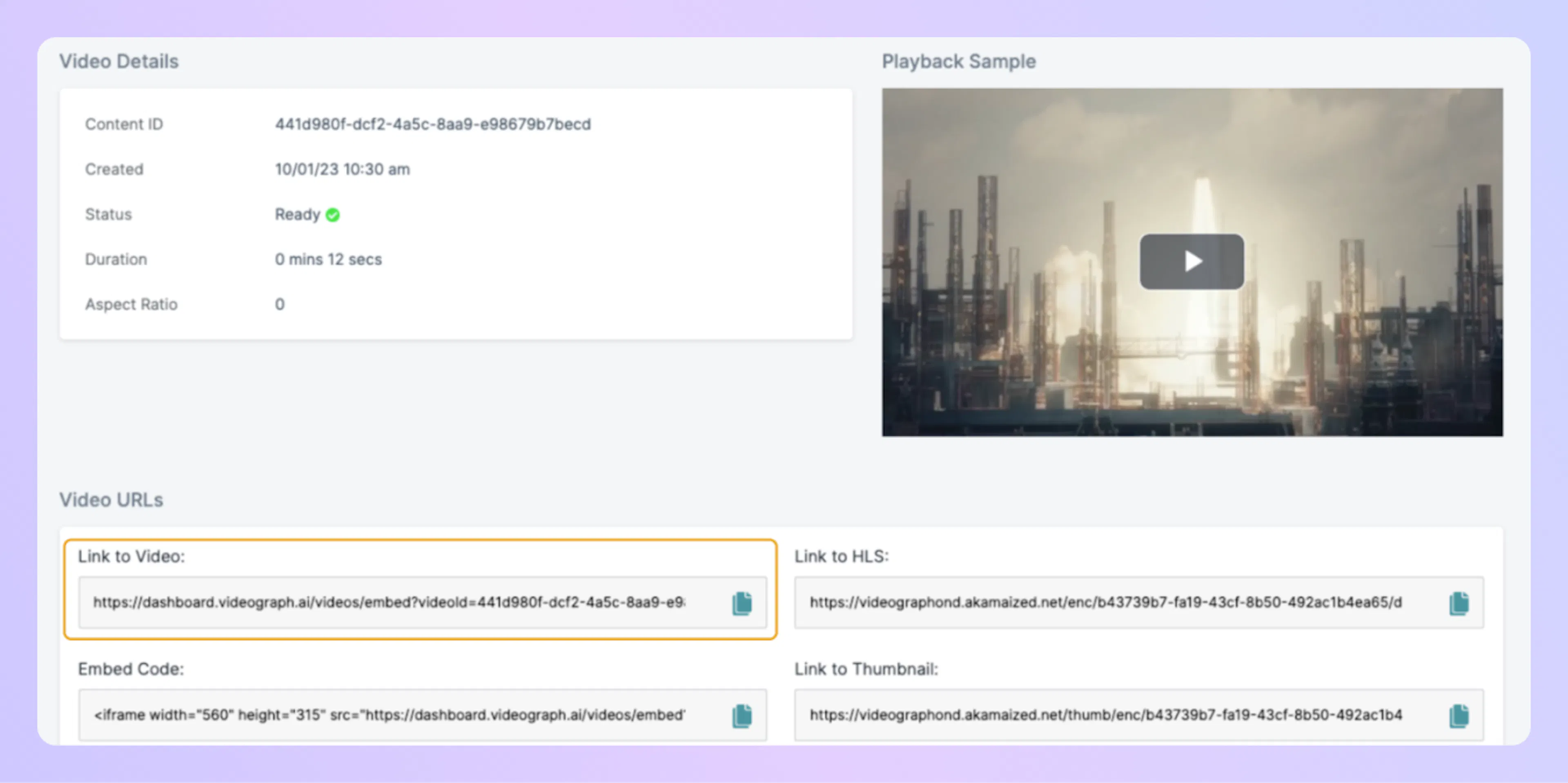
For secure playback, use tokenized HLS URLs generated on your server. See Secure Playback.
Basic HTML5 video playback
A simple HTML5 video element can play your HLS source directly.
<video
  id="my-player"
  controls
  src="https://example.com/path/to/playlist.m3u8">
</video>
Most browsers handle HLS natively or through Media Source Extensions. If you need a JavaScript HLS library, attach it to the same video element.
Using simple embeds or the Web SDK
Videograph supports two primary integration styles. A comparison is available in Players, SDKs & Embeds.
-
Simple embeds
Good for quick plug-and-play playback. -
Web SDK or custom players
Useful when you need programmatic control, custom UI, or event handling.
Initializing playback with JavaScript
The example below shows a generic initialization pattern using a createPlayer function. Supply your VOD or live HLS URL as playbackUrl.
// Obtain a reference to your HTML container
const container = document.getElementById("player-root");

// Initialize a player instance
const player = createPlayer({
  container: container,
  source: {
    type: "vod", // or "live"
    playbackUrl: "https://example.com/path/to/playlist.m3u8"
  },
  poster: "https://example.com/poster.jpg",
  autoplay: false,
  muted: false
});

// Start playback when ready
player.on("ready", () => {
  player.play();
});
You can pass optional fields such as captions, controls, or autoplay depending on your UI needs.
Handling common events
Subscribe to player events to update UI or record analytics.
player.on("play", () => {
  console.log("Playback started");
});

player.on("pause", () => {
  console.log("Playback paused");
});

player.on("timeupdate", (data) => {
  // Inspect data.currentTime as needed
});
Notes on live streams
Live stream creation responses provide a playbackUrl that becomes active when the live session begins publishing. Plug this URL into your HTML5 element or player initializer the same way you would for VOD.
For details on live workflows, see Live Streaming Overview.
Both VOD and live playback URLs may be tokenized based on your security configuration. Generate short-lived tokens server-side.