

Creating, Streaming & Recording Live Sessions
End‑to‑end workflow for creating a live stream, broadcasting via RTMP, watching HLS playback, and recording the session for later VOD retrieval.
Overview
This guide shows how to create a live stream using the Videograph API, broadcast using an RTMP encoder, view the HLS output, and optionally record the session. When recording is enabled, the stream is captured and remains available for about 12 hours from the start time before it is processed into a VOD‑like asset accessible through the standard contents API.
If you are new to live streaming on Videograph, see Live Streaming Overview. For essential playback concepts, see Content Model & Playback Basics.
Prerequisites
- API access key and secret (see Authentication & Access Control).
- An RTMP‑compatible encoder such as OBS Studio.
- An HLS‑compatible playback integration (see Playing Videos (Web & App Integration)).
Recording must be enabled when creating the live stream. Recorded sessions are retained for about 12 hours from the start of the broadcast before they are processed into a retrievable asset.
End‑to‑end workflow
Create a live stream
Use the POST /video/services/api/v1/livestreams endpoint to create a live stream. Set the record boolean to control whether the session should be captured for later retrieval.
curl --request POST \
     --url https://api.videograph.ai/video/services/api/v1/livestreams \
     -u "ACCESS_KEY:SECRET_KEY" \
     --header "content-type: application/json" \
     --data '{
       "title": "Live stream",
       "region": "us-east-1",
       "record": true
     }'
Setting "record": false creates a non‑recorded live stream.
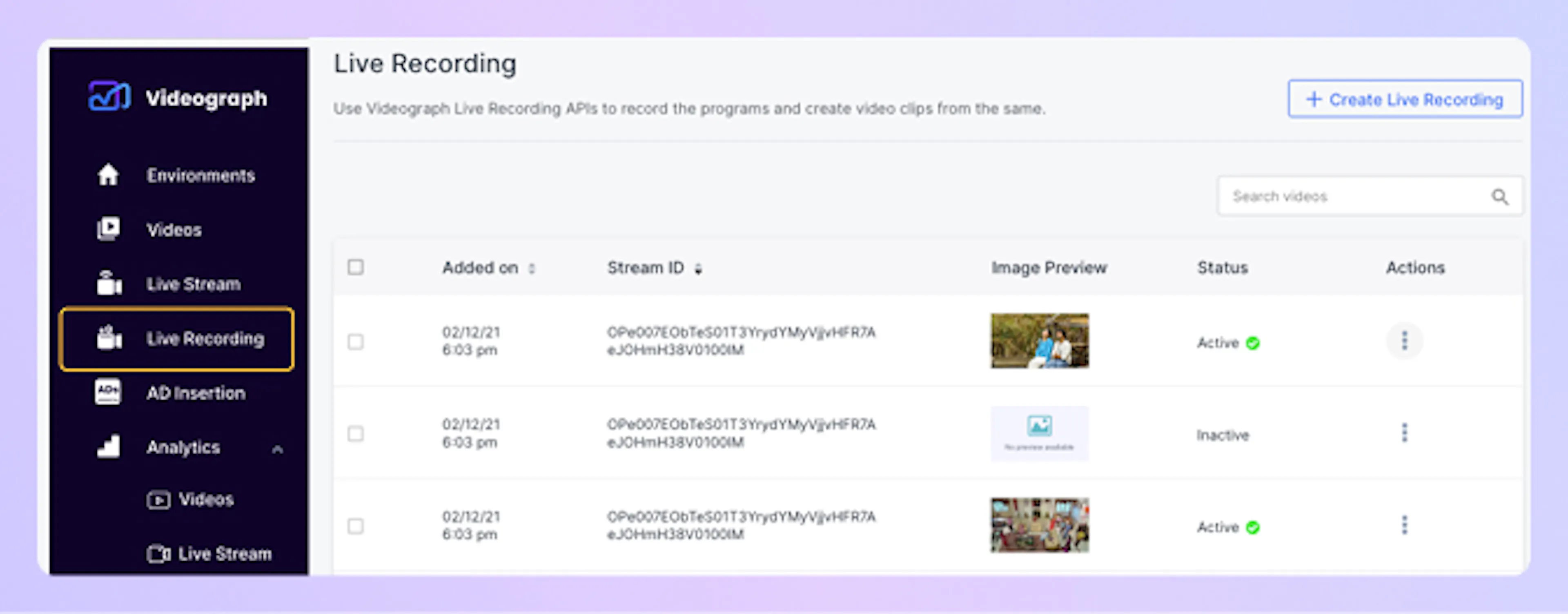
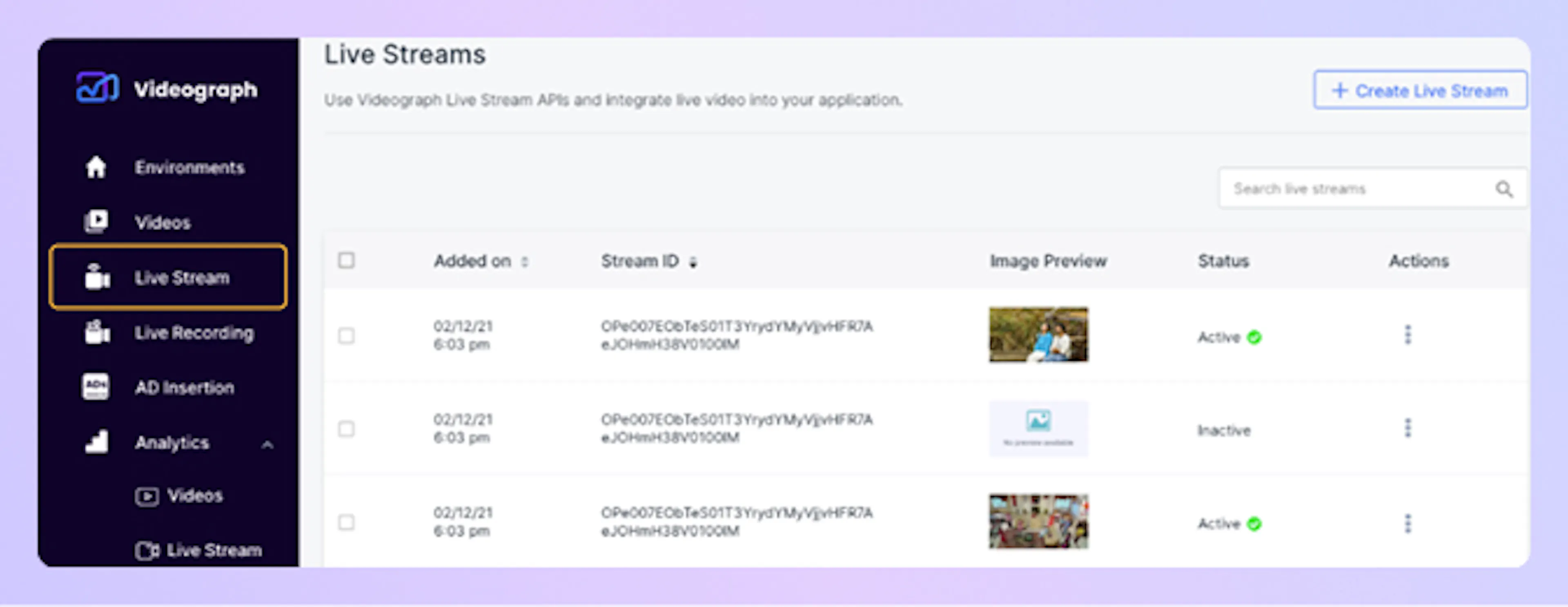
The dashboard shows separate views for streams created with recording enabled and disabled.
Interpret and store the response
The response returns all information required to broadcast and play the stream:
playbackUrlrtmpUrlstreamKeystreamUUIDstatus(initially Idle)
Store these values so your encoder and playback clients can be configured correctly.
Select the correct RTMP ingest base URL
Videograph uses two ingest bases:
-
For recorded streams (
recordset totrue):
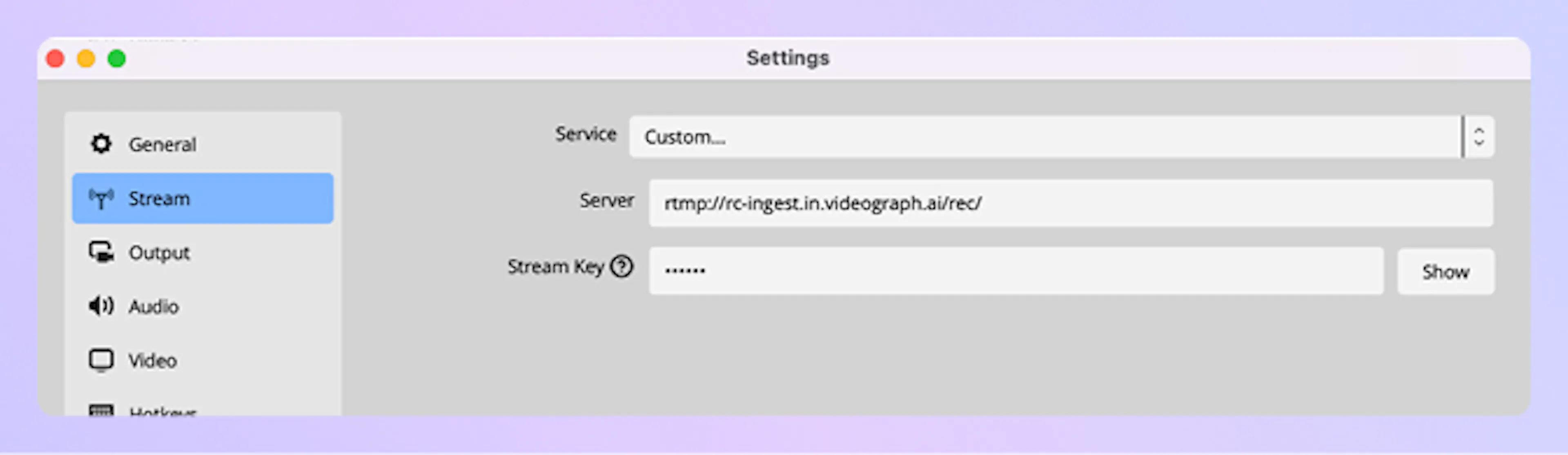
rtmp://rc-ingest.in.videograph.ai/rec -
For non‑recorded streams (
recordset tofalse):
rtmp://ingest.in.videograph.ai/live
Append the returned streamKey when configuring your encoder.
Configure and start your encoder
In OBS or another RTMP encoder:
- Set the server field to the ingest base URL.
- Set the stream key field to the returned
streamKey. - Start streaming to send video to Videograph.
Once the stream is received, it becomes playable using the returned HLS playbackUrl.
The screenshot below shows an example OBS configuration with the RTMP server URL and stream key.
Watch the live stream via HLS
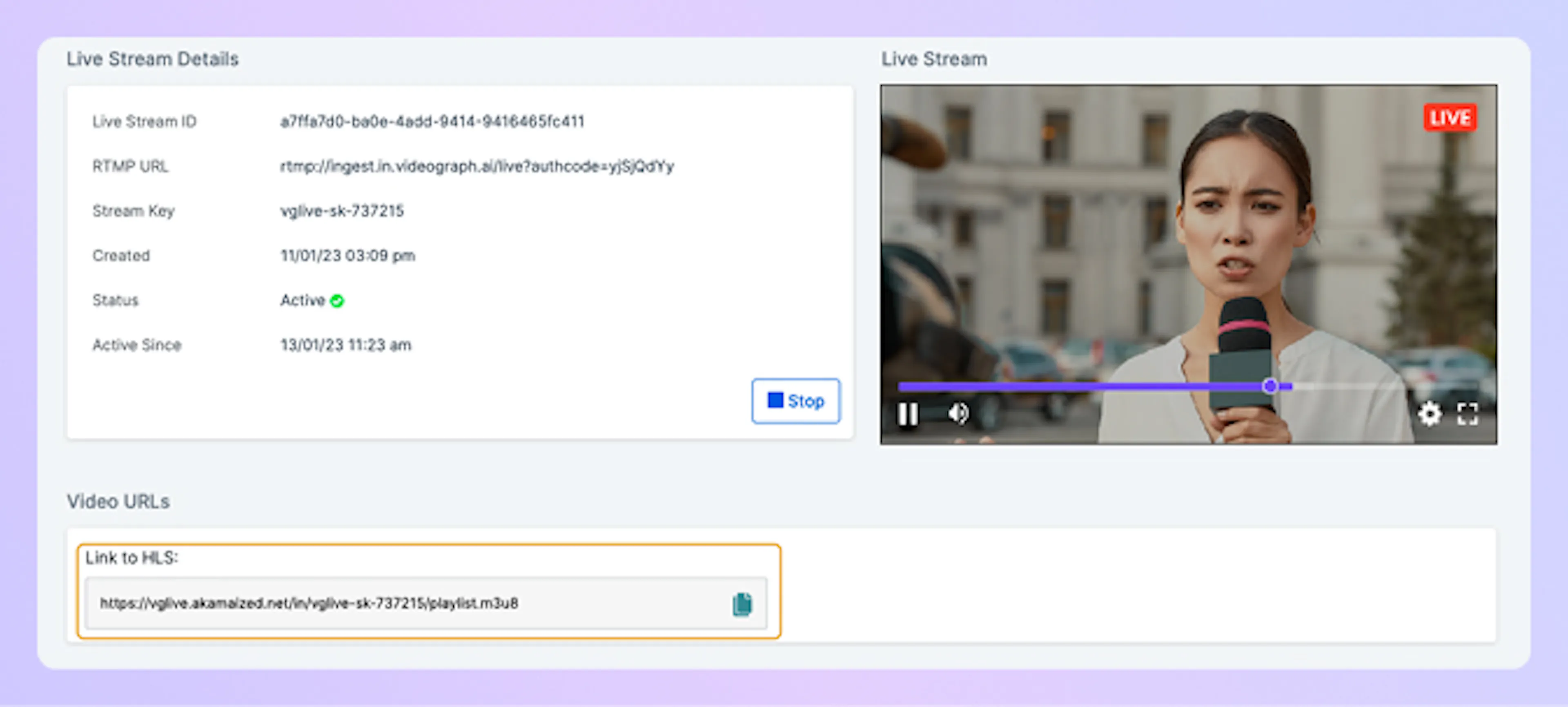
Use the playbackUrl in any HLS‑capable player. See Playing Videos (Web & App Integration) for common integration patterns.
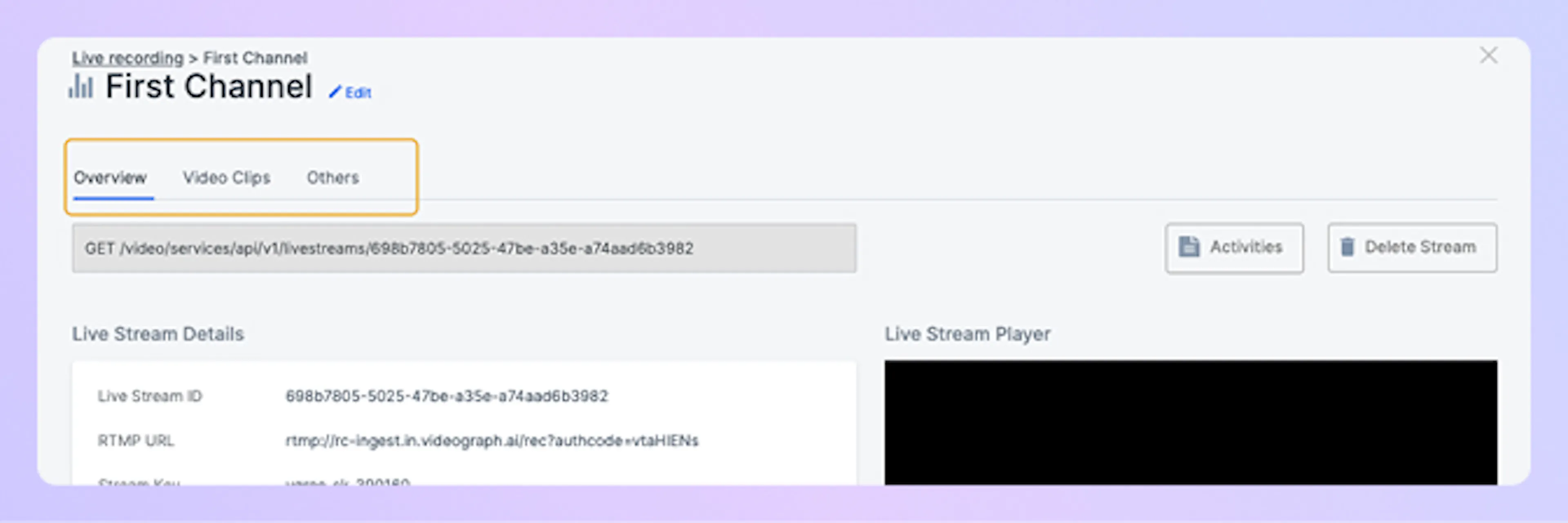
The HLS playback URL is also visible directly in the Videograph dashboard.
Retrieve the processed VOD asset (if recording enabled)
If "record": true, the stream is recorded and remains accessible for about 12 hours from the start time. After that window, the session is processed into a standard content item retrievable via the contents API.
When you know the resulting content identifier, request the asset and its playback URL:
curl --request GET \
     --url https://api.videograph.ai/video/services/api/v1/contents/CONTENT_ID \
     -u "ACCESS_KEY:SECRET_KEY"
For editing metadata or managing tags later, see Managing Video Content.
You can also manage the live stream and recorded sessions from the dashboard's Live Stream or Live Recording menus, including clips, metadata, and lifecycle actions.
How recorded sessions become VOD assets
Recorded live streams are captured for about 12 hours from the moment the broadcast begins. After the session and retention window complete, Videograph processes the recording into a content item accessible through the standard VOD API. You can then work with the asset the same way you would any uploaded video, including updating metadata or integrating the playback URL in your applications.