

Managing Video Content
Understand the fields returned after creating VOD content, and how they help you track processing status and enable playback flows.
{
  "code": 200,
  "data": {
    "contentId": "fa6d3dc8-c78c-4c67-98ef",
    "created_at": 1673353801033,
    "description": "",
    "duration": 0,
    "metadata": [],
    "mp4_support": true,
    "playbackPolicy": [
      "public"
    ],
    "save_original_copy": false,
    "status": "Pending",
    "statusId": 1,
    "test_video": true,
    "title": "Demo Video"
  },
  "message": "Data success",
  "status": "Success"
}
{
  "status": "Pending",
  "statusId": 1
}
Overview
After you upload or create a video through the API, the service responds with a structured content object. This object includes identifiers, lifecycle status, metadata fields, and playback‑related properties you will reference in later requests. The screenshot below shows the Videograph dashboard where you can manage created assets including clips, thumbnails, subtitles, and metadata.
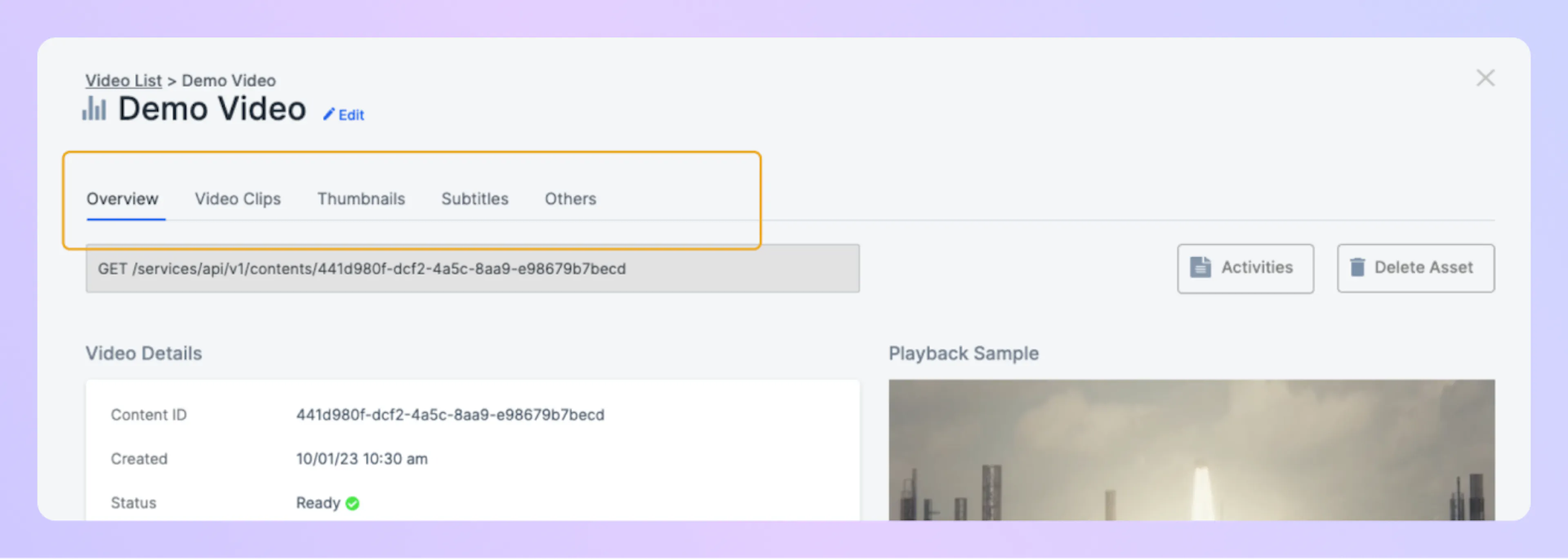
This page explains the key fields from the creation response and how they fit into the broader workflow. For guidance on uploading, see Uploading Videos (Dashboard & API). For playback usage, see Playing Videos (Web & App Integration).
Example creation response
The following response reflects what you receive immediately after a successful content creation request. Values may vary depending on your workflow.
Core identifiers
These fields uniquely identify the asset and anchor all future operations.
Metadata and descriptive fields
These fields help you label and organize the asset. They generally reflect information supplied at creation time.
Processing and readiness status
The service begins preparing your video as soon as the content record is created. These fields tell you whether the asset is ready to play.
After creation, the asset often begins in Pending or Preparing. Most workflows check status before generating or using playback URLs.
How to use these fields
-
Poll the content endpoint (see the API reference) using the
contentId. -
When status transitions to a ready value, duration and playback assets become available.
-
You can then allow clients, apps, or services to request playback URLs.
Playback‑related properties
These fields control or describe how playback can occur later.
Using the content object in your workflow
The creation response enables the two most common next steps:
Check status
Query the asset using the contentId until status indicates readiness. Refer to Monitoring Processing & Content Status for related concepts.
Play the video
Once the asset is ready, request playback URLs according to your playbackPolicy. Integration details are available in Playing Videos (Web & App Integration).
The creation response is your source of truth for tracking the asset from upload to playback. Keep the contentId available in your application or workflow to streamline later calls.