

Live Streaming Overview
How live streams are created, ingested, recorded, and played back using Videograph APIs.
curl --request POST \
  --url https://api.videograph.ai/video/services/api/v1/livestreams \
  --header "accept: application/json" \
  --header "content-type: application/json" \
  --data '{ "title": "Live stream", "region": "us-east-1", "record": false }'
{
  "code": 200,
  "data": {
    "createdOn": 1673595417480,
    "metadata": [],
    "playbackUrl": "PLAYBACKURL",
    "rtmpUrl": "RTMP URL",
    "status": "Idle",
    "streamKey": "STREAMKEY",
    "streamUUID": "271dc169-da00-4f4e-bdc8-01c13f827eb9",
    "title": "live stream"
  },
  "message": "Livestream details with id: 271dc169-da00-4f4e-bdc8-01c13f827eb9",
  "status": "Success"
}
Overview
A live stream in Videograph represents an ingest point that accepts real‑time media from an encoder and turns it into an HLS playback stream. You create the stream through an HTTP API, publish to the returned rtmpUrl, and play the resulting adaptive output from the playbackUrl.
You can safely prototype live streaming in a test workspace before configuring production ingest endpoints.
When you create a stream using the endpoint POST /video/services/api/v1/livestreams, you provide a title, a region, and a boolean record flag. The API responds with the ingest information your encoder needs: rtmpUrl, streamKey, streamUUID, playbackUrl, and an initial status of Idle.
Creating a live stream
The minimal request requires three fields:
-
title: A human‑readable name for the stream. -
region: A deployment region such asus-east-1. -
record: A boolean that determines whether Videograph records the session.
The returned ingest information is used directly by your encoder. You typically configure your encoder with the base RTMP server URL and supply the streamKey as the stream identifier.
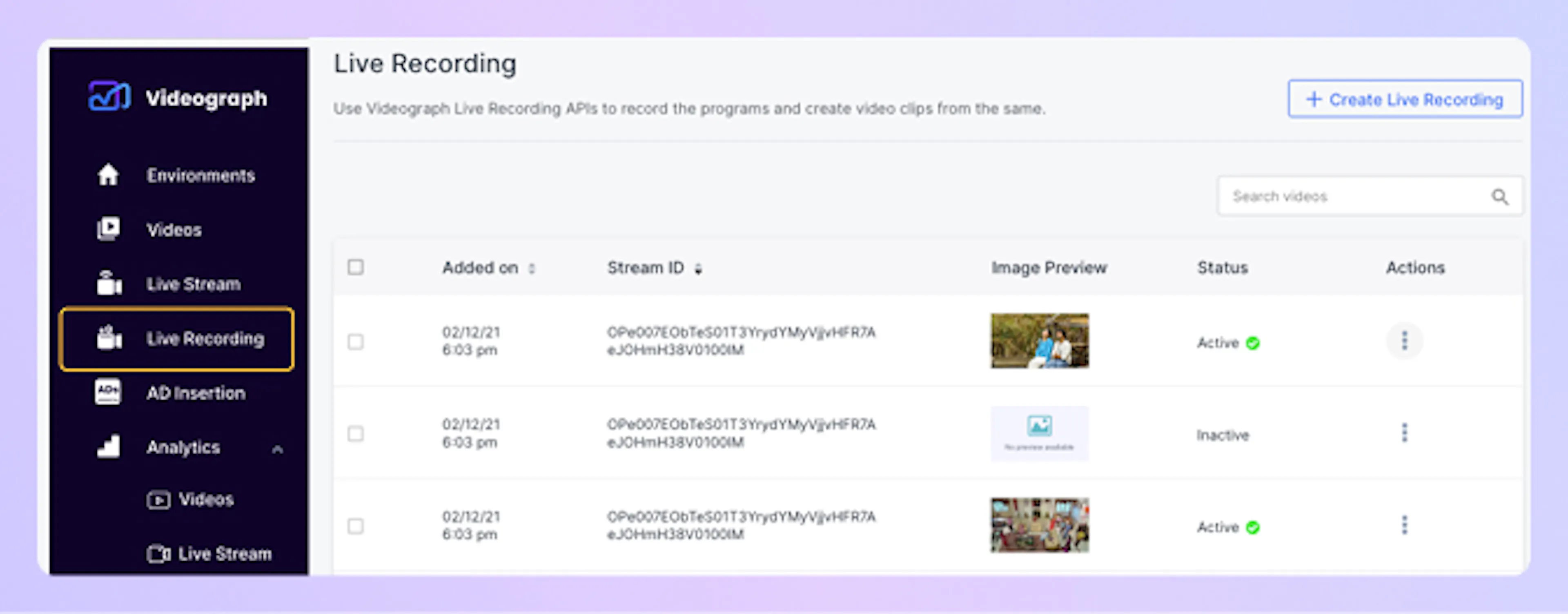
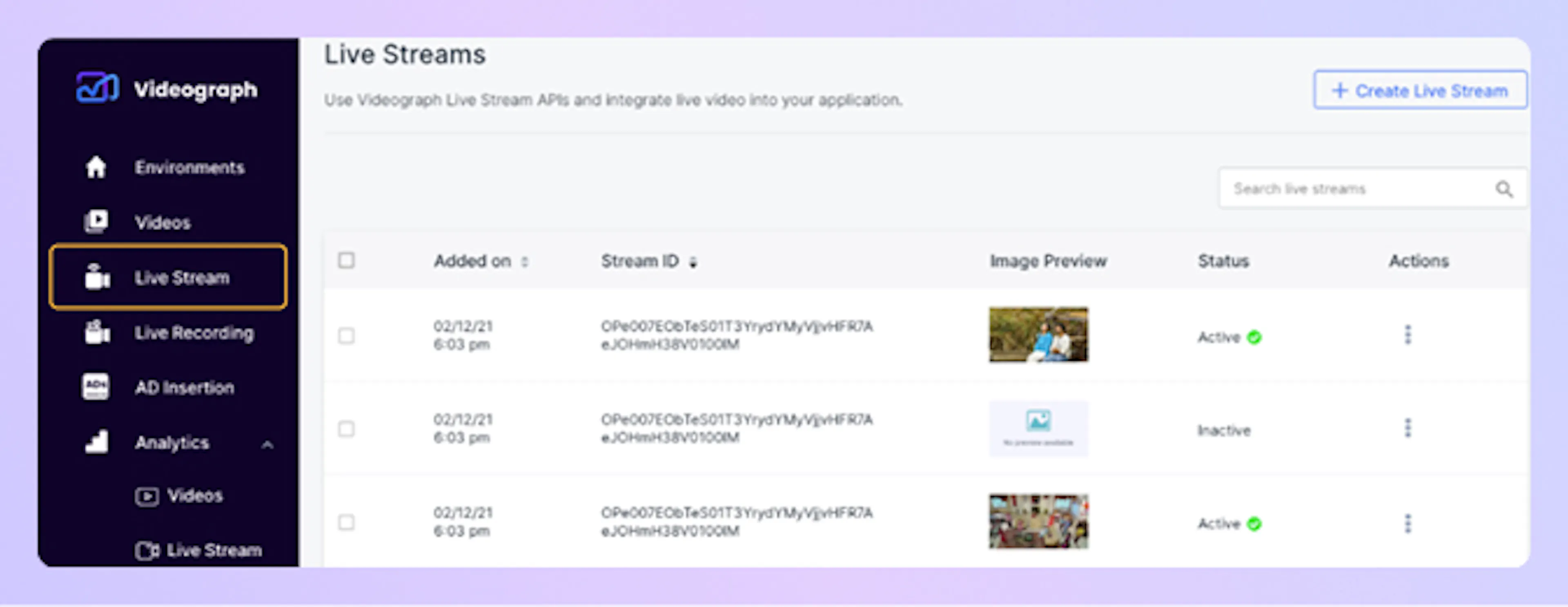
The screenshots below show how streams created with recording turned on or off appear in the dashboard under the Live Recording and Live Stream menus.
RTMP ingest URLs
Videograph exposes two RTMP ingest base URLs. The URL you use depends on the record parameter you set at stream creation time.
| Use case | Base RTMP server URL | Behavior |
|---|---|---|
Recording enabled (record set to true) | rtmp://rc-ingest.in.videograph.ai/rec | Stream is recorded. Recorded content remains available for 12 hours from the start time. |
Recording disabled (record set to false) | rtmp://ingest.in.videograph.ai/live | Stream is not recorded. |
Your encoder should publish to the base RTMP URL returned in rtmpUrl and append the streamKey exactly as provided.
Playing the live stream
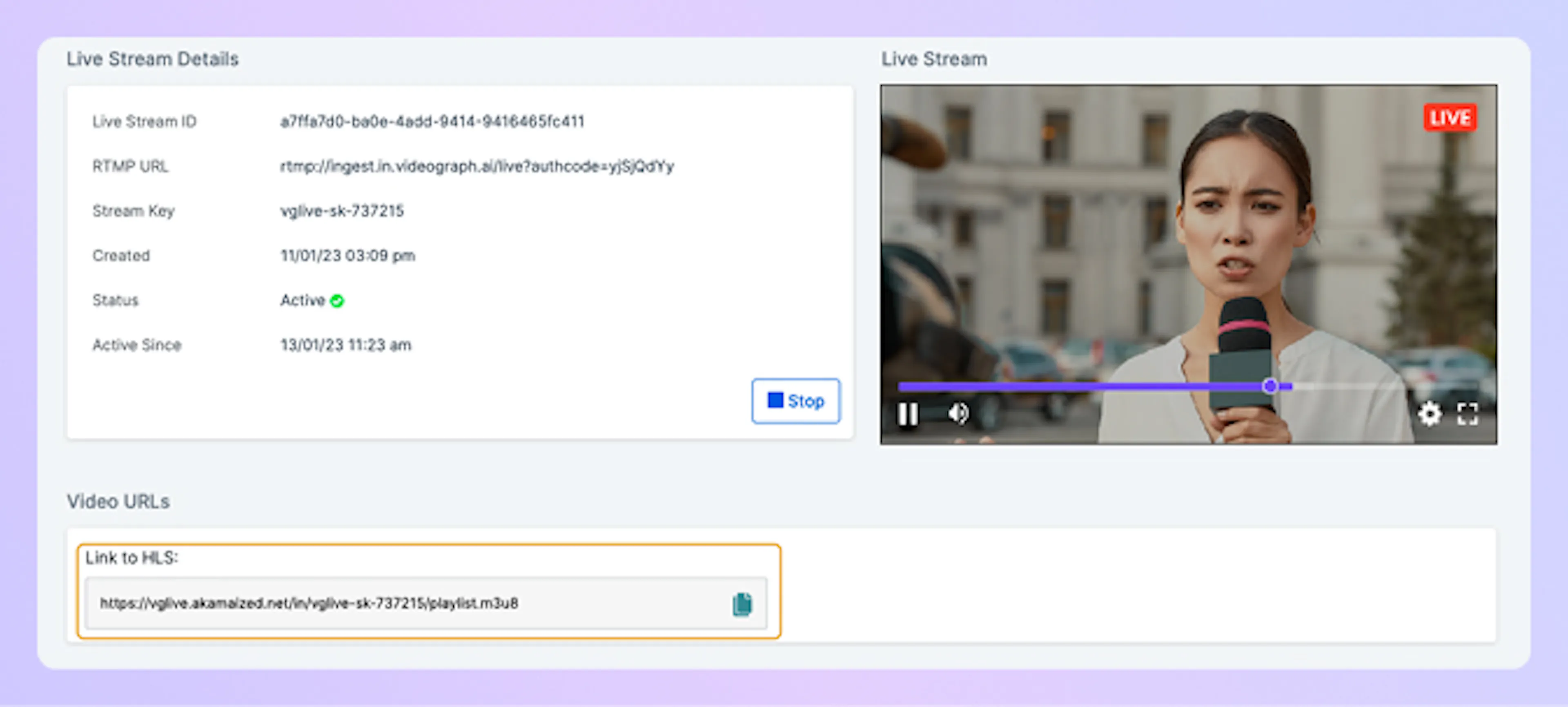
As soon as Videograph begins receiving valid media, it generates adaptive HLS output available at the playbackUrl returned during creation. You can embed this URL in any HLS‑compatible player or integrate it into your app.
You can also access the HLS playback URL directly from the Videograph dashboard.
For player integration guidance, see Playing Videos (Web & App Integration).
Understanding the live stream lifecycle
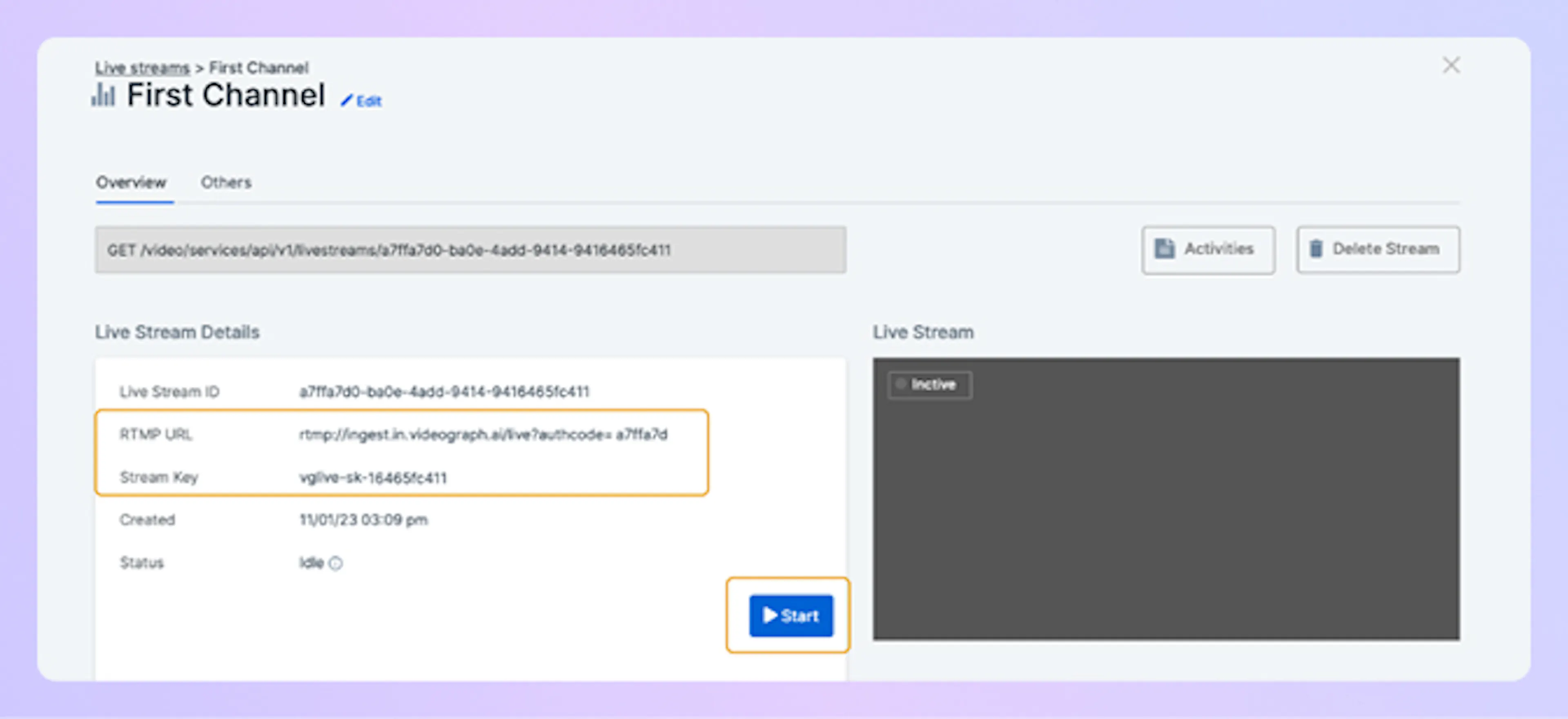
Immediately after creation, a stream is in an Idle state. When your encoder connects and begins pushing media, Videograph starts processing segments and updates the playback output. When the encoder disconnects, the system finalizes the session.
The dashboard shows the transition from Idle to Active when streaming starts and provides controls to stop the session.
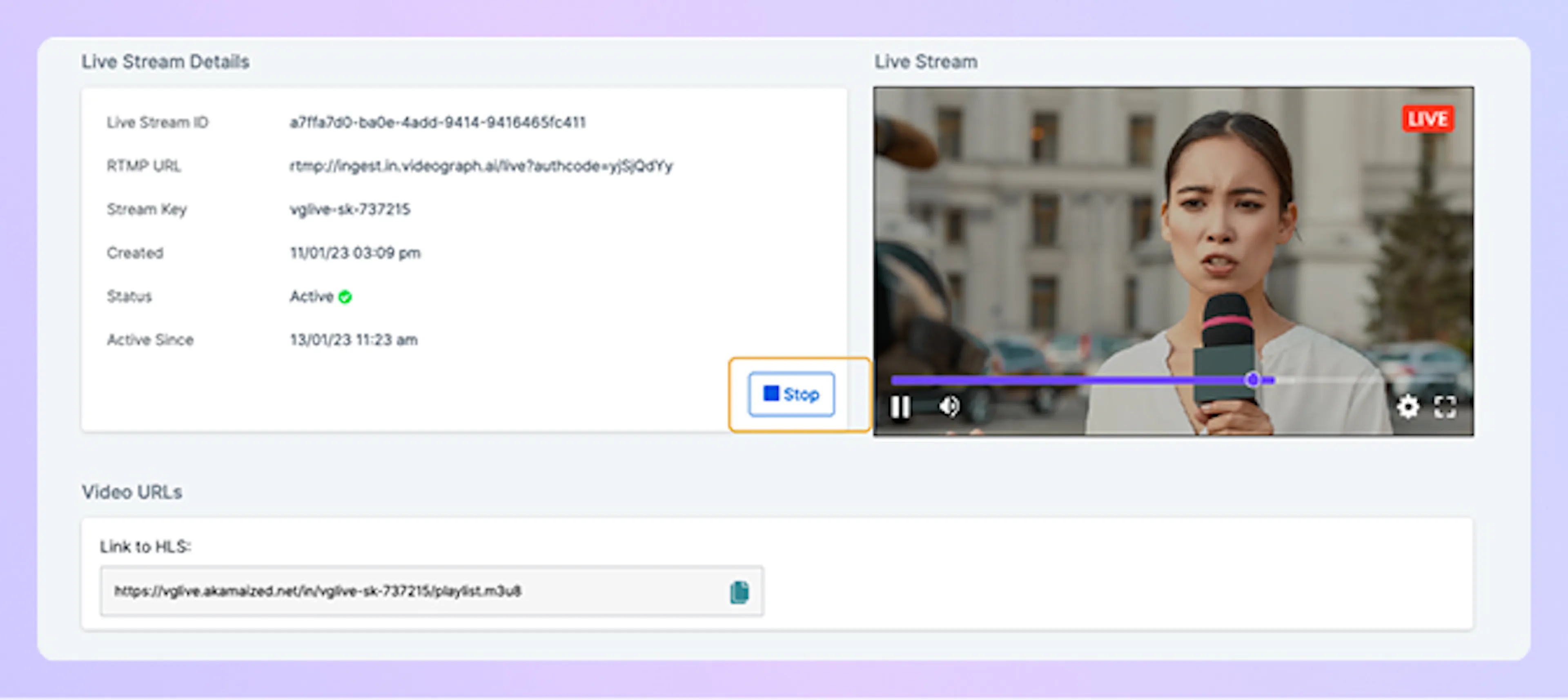
This simplified flow captures the high‑level transitions relevant for most integrations.
Next steps
To learn how to publish video, enable recording, and work with the resulting outputs, continue with the detailed guide: Creating, Streaming & Recording Live Sessions.